-
1C
-
Agda
-
Agile/Scrum
-
Alef
-
APL
-
Assembler
-
AWK
-
Basic
-
Beta Programming Language
-
Big Data/DataScience
-
C
-
C#
-
C++
-
Cobol
-
Crystal
-
CSS
-
D
-
Dart
-
DataBase (SQL)
-
Delphi
-
F#
-
Flutter
-
Fortran
-
GameDev
-
Git
-
Go (Golang)
-
GPT/AI/ИИ
-
Hacking and Security
-
Haskell
-
HTML
-
Java
-
JavaScript (JS)
-
Julia
-
Kotlin
-
Machine Learning (ML)
-
Natural language processing (NLP)
-
.NET (.NET Core)
-
Pascal
-
PHP
-
Python
-
R
-
Ruby
-
Rust
-
Scratch
-
Swift
-
UML
-
UX/UI
-
Visual Basic
-
Wolfram
-
XML
-
АСУ
-
Проектирование/System Design
-
Сети/Network
-
Статьи
-
Схемотехника/электронные схемы
-
1C
-
Agda
-
Agile/Scrum
-
Alef
-
APL
-
Assembler
-
AWK
-
Basic
-
Beta Programming Language
-
Big Data/DataScience
-
C
-
C#
-
C++
-
Cobol
-
Crystal
-
CSS
-
D
-
Dart
-
DataBase (SQL)
-
Delphi
-
F#
-
Flutter
-
Fortran
-
GameDev
-
Git
-
Go (Golang)
-
GPT/AI/ИИ
-
Hacking and Security
-
Haskell
-
HTML
-
Java
-
JavaScript (JS)
-
Julia
-
Kotlin
-
Machine Learning (ML)
-
Natural language processing (NLP)
-
.NET (.NET Core)
-
Pascal
-
PHP
-
Python
-
R
-
Ruby
-
Rust
-
Scratch
-
Swift
-
UML
-
UX/UI
-
Visual Basic
-
Wolfram
-
XML
-
АСУ
-
Проектирование/System Design
-
Сети/Network
-
Статьи
-
Схемотехника/электронные схемы
Меню
Enhancing Adobe Acrobat Forms with JavaScript: Take Your Forms to the Next Level. 2 Ed
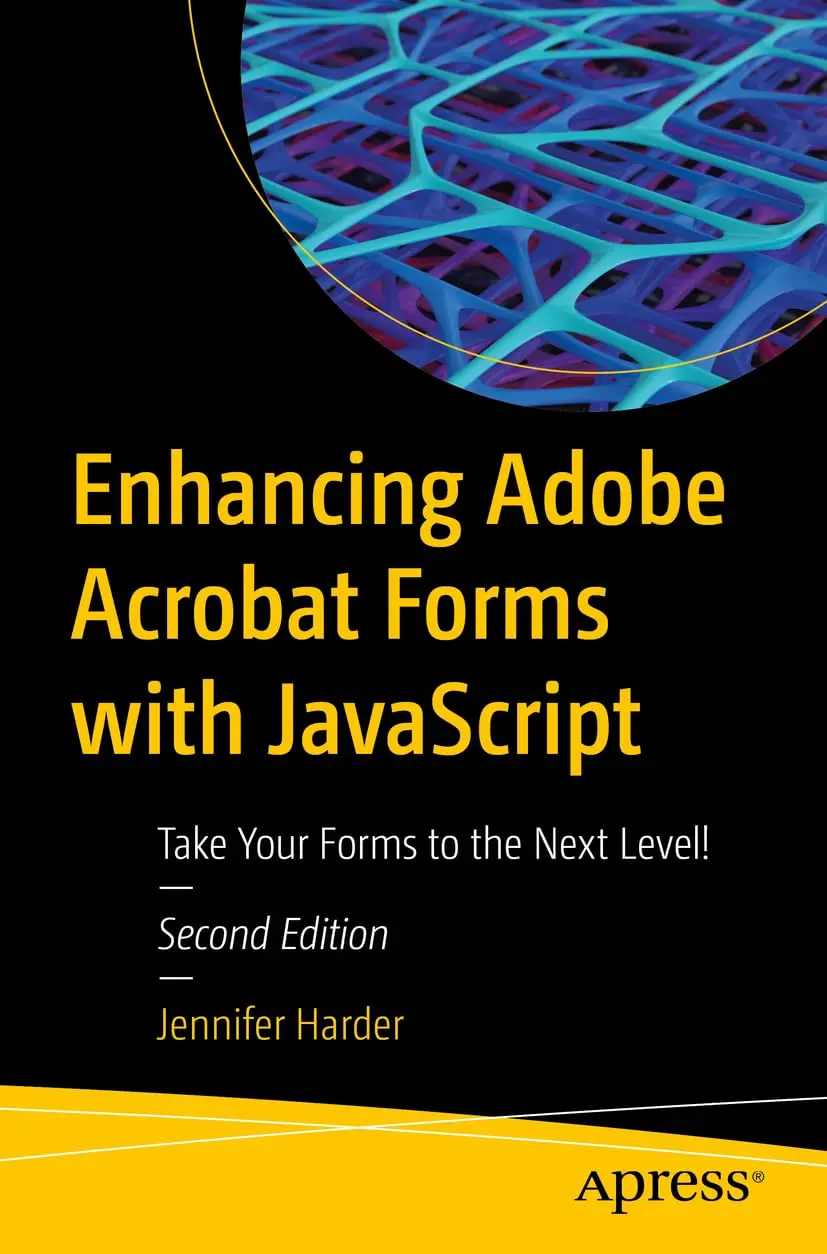
Автор: Harder Jennifer
Дата выхода: 2023
Издательство: Apress Media, LLC.
Количество страниц: 756
Размер файла: 11,9 МБ
Тип файла: PDF
Добавил: codelibs
Проверить на вирусы Дополнительные материалыTable of Contents....4
About the Author....14
About the Technical Reviewer....15
Acknowledgments....16
Introduction....17
Part I: Basic Form Improvements....26
Chapter 1: A Fundamental Forms Primer....27
Forms Review....27
Fields Refresher....39
Properties Refresher....48
Text Box Field Properties and Date Field Properties Dialog Boxes....49
Dropdown Properties Dialog Box....50
List Box Properties Dialog Box....52
Check Box Properties Dialog Box....53
Radio Button Properties Dialog Box....54
Button Properties and Image Properties Dialog Box....55
Digital Signature Properties Dialog Box....56
Barcode Properties Dialog Box....57
Tabs Refresher....58
Editing Your Form with the More Menu and Right Pane....68
Setting the Field Tab Order Using the Menu Options....70
Clearing a Form While Working....79
Summary....82
Chapter 2: Introduction to Actions....83
Getting Started....83
Rating Forms Value Averaging and Sum: Working with Text Fields....85
The Validate Tab....88
The Calculate Tab for the Grand Total Using Sum....93
Sum and Averaging Using Check Boxes or Radio Buttons with Text Fields....96
Using Radio Buttons on Page 3 of the Project....98
Using Check Boxes on Page 3 of the Project....104
Turning Check Boxes into Radio Buttons....106
Basic Action Button Triggers for Reset Buttons and Printing Buttons....110
Reset Button....110
Print Form Button....114
Summary....118
Chapter 3: Creating a QR Code Custom Stamp....119
Customizing Your QR Code Stamp....121
QR Code Creation....122
Using the Stamp Tool....128
Final Thoughts: QR Code for Professional Printing....132
Summary....134
Chapter 4: Buttons, Navigation, Form, and Nonform Actions....135
Creating a Button Icon....136
Example of a Button as a Label Only....140
Example of a Button Combination of Icon Only....143
Nonform Properties Actions....145
Pages....145
Bookmarks....148
Web and Custom Hyperlinks....152
Rich Media Nonform Navigation Buttons....159
Layers Basic Actions....161
Other Nonform Actions That Can Affect Sticky Note or Markup Tools Indirectly....164
Triggers for Actions....164
Choose an Action That Requires No Code....166
Newsletter Navigation with Buttons....174
Form Navigation with a Button as a Helpful Hint....178
Adding a Comb of Characters....181
Before Comb and After Comb....182
More Action Triggers to Show and Hide....185
Hide and Clear Fields Button....188
Set Layer Visibility....191
Using Bookmarks....192
Using Buttons....195
Summary....197
Part II: Simplified Field Notation and Basic JavaScript....198
Chapter 5: Introduction to Simplified Field Notation and JavaScript....199
Getting Started....200
Text Field, Date, and Drop-Down List Properties....201
Actions Tab....201
Format Tab....202
Validate Tab....204
Calculate Tab....204
Check Box, Radio Button, Image Field, and Button Properties....205
List Box Properties....206
Digital Signature Properties....208
Barcode Properties....209
Global Document JavaScript....210
Web Links and References....217
Regular Forms vs. E-Signature Forms....217
JavaScript and Acrobat on the Document Level....219
Summary....219
Chapter 6: Basic and Complex Calculations....220
Getting Started....221
Sum Value....223
Simplified Field Notation....225
JavaScript Custom Calculation Script....228
Final Thoughts on Working with the Calculate Tab....232
JavaScript Script Validation for Displaying Zero....235
The Final Line of Code....237
Drop-Down Alternatives....239
Set Field Calculation Order....240
Resetting Your Field of Focus....242
Summary....246
Chapter 7: Format Calculations....247
Number Formatting....250
Formatting with a Percentage....253
A Workaround for the Percentage....255
Reset Fields with JavaScript....261
Date Formatting....262
Date Formatting with JavaScript....264
Time Formatting....271
Time Formatting with JavaScript, a Custom Example....276
Comb of Characters for Dates....280
Special Formatting....281
Final Thoughts....282
Drop-Down Alternatives....283
More Information on Adding Decimal Places and Leading Zeros....283
Summary....284
Chapter 8: Various JavaScript Alerts, Notes, and Time Stamps....286
Alert Types....288
Create a Document JavaScript....289
Viewer Version and Validation Alert....293
Document Actions....296
Document Will Close....297
Document Will Print....298
Alerts Working with Buttons....299
Adding a Comment Note, Signature, and Time Stamp....302
Signature Field and Time Stamp....308
Summary....313
Chapter 9: Create Help for Clients with Rollover Text and Alerts....314
The Rollover Method....315
Mouse Enter....320
Mouse Exit....321
Longer Array Example (Optional)....321
Extra Noncustom JavaScript Check Box Example....322
How to Show and Hide Fields with JavaScript....323
The Default Text Method....326
The Alert Method....330
Customer’s Full Name....331
Date....335
Customer Order Code....339
Customer’s Company Name....341
How to Duplicate Text for Multiple Fields and Make Fields Read-Only....343
Set Fields to Read-Only with JavaScript....347
Final Thoughts....348
Summary....349
Chapter 10: Various Types of Formatting with JavaScript....350
Adding Global Formatting to Text Fields....351
Color Properties....357
Array and Variable Examples of Formatting Properties....358
Multiline Buttons....362
Multiline Text....365
Complex Formatting Using Check Boxes and a Text Field....370
Rich Text Formatting for Text Fields and Comments....378
Comment Example....382
Final Thoughts on Formatting with Text....384
Silent Printing....386
Options for Submit Button Using Email....389
Summary....394
Part III: Working with More Complex Forms....395
Chapter 11: Validation with Text Boxes, Alerts, and Radio Buttons....396
Money Transfer Example....397
Alternate Way to Work with Radio Buttons Without Alerts....406
Changing the Shipping Price Using Radio Buttons....410
Additional Radio Button Example with JavaScript and Text Fields and How to Change Data for Time....420
Setting Up the Text Fields....424
Check Box Variation with Date Text Fields....426
Notes on Changing Formatting Options for Radio Button, Check Box, and Button Style....427
Formatting for Buttons and How the Following Properties Can Be Affected....429
Formatting for Radio Buttons and Check Boxes....430
Text Field Validation with Regular Expressions....432
Telephone Validation....434
Name Validation....438
Account Number Validation....441
Email and URL Validation....442
Another Phone and Date Example with Two Variables....443
Final Thoughts on Formatting Fields....446
Summary....449
Chapter 12: Working with Dropdown Lists....450
Current Skills Request Form....451
Parts Order Form....460
Drop-Down Lists with Select Dates and Discounts....482
Final Thoughts....487
Load a Lengthy Single Drop-Down or List Menu....487
Tips on Changing Custom Formatting for Drop-Down Lists with JavaScript....490
Summary....491
Chapter 13: Working with List Boxes....492
List Box Priority List with Control Buttons....493
The Add Button....498
The Delete Button....499
The Clear or Reset Button....500
The Up Button....500
The Down Button....501
Check Box, Drop-Down, and List Box: Example 1....505
Check Box, List Box, and Multi-Drop-Down: Example 2....512
Button Slide Show Variation....522
Extra Example Priority List Improved....523
Final Thoughts....532
Hidden Fields....532
Using List Boxes for a Number Rating....534
Notes on Changing Custom Formatting for List Boxes....534
Summary....535
Chapter 14: Advanced Navigation: The Pop-Up Menu....536
The Pop-Up Menu Example....537
Add a Pop-Up Menu Using a Bookmark....544
Final Thoughts....549
Summary....550
Part IV: Beyond the Basics....551
Chapter 15: Action Wizard and JavaScript....552
Working with the Action Wizard....553
Reuse JavaScript from Chapter 8....564
Is It a Custom Action or a Custom Command?....565
Create and Manage Custom Commands....566
Summary....567
Chapter 16: Multistate Check Boxes....568
The Problem of Multistate Check Boxes....568
Bonus Star Rating Idea....578
Select All or Deselect All Check Boxes at Once....580
Summary....584
Chapter 17: Importing an Image into a Button....585
Creating the Button....586
Summary....591
Chapter 18: Multiple Formatting....592
The Problem of Multiple Formatting....592
Option 1: Do It Yourself....596
Price Script....598
No Price Script....599
Adding a Degree Symbol and Formatting Range....606
Option 2: Contact a Professional....611
Summary....613
Chapter 19: Digital Signatures and Barcodes....614
Digital Signatures and Security....615
Working with Digital Signatures and Other Adobe Security Tools....624
Signature Field Formatting....632
Create a Security Puzzle....633
Barcodes....638
Summary....641
Chapter 20: What Are E-Signature Forms and Web Forms?....642
A Brief Look at Request E-Signatures and Resources....644
What Are Web Forms?....662
Summary....698
Part V: Putting It into Practice....699
Chapter 21: Homework Assignments....700
Homework Assignment 1: Show and Hide....700
Homework Assignment 2: Working with JavaScript to Create Formulas....719
Area of a Circle A = π r 2....721
Field: CircumferenceRow1 Circumference of a Circle C = 2 π r....722
Field: VolumeRow1 Volume of a Sphere V = 4/3 π r3....722
Field: FahrenheitRow1 Celsius to Fahrenheit to Formula. (°C x 9/5) + 32 = °F.....722
Field: CelsiusRow1_2 Fahrenheit to Celsius Formula. (°F - 32) x 5/9 = °C....723
Homework Assignment 3: Custom Validation and Regular Expressions....726
Homework Assignment 4: Personal Drop-Down List Menu and Definitions Text Box....737
Summary....746
Index....747
Take your PDF forms to the next level! In this book, you’ll learn various ways to further improve your PDF forms using simple JavaScript coding. You’ll also discover how a few lines of code can speed up your workflow when working with multiple PDFs in Action Wizard.
Enhancing Adobe Acrobat Forms with JavaScript covers up-to-date, real working examples that you can easily download and practice with and edit to suit your own projects. This book also shows workarounds and solutions to various form issues you might encounter. Feel empowered by it and improve your PDF documents!
JavaScript has been a part of Adobe Acrobat for many versions. However, few people use its features and focus mainly on using basic form properties, never delving deeper into Acrobat’s full capabilities. While information on the web can be helpful, if you don’t know enough about how to use JavaScript in Acrobat you will be left with poor results. JavaScript can be difficult to learn,but it does not need to be scary. This book explains in simple steps for beginner to intermediate level so that you can take full advantage of Acrobat’s capabilities for your own projects.
What You Will Learn
- Learn simplified field notation and basic JavaScript for Acrobat
- Work with buttons that can be used for navigation
- Improve form navigation and printing of forms
- Add various types of alerts and custom validations to improve client-entered-data
- Learn the basics of how to prepare a form for e-signing
Who Is This Book For
This book is for anyone who needs to create forms for clients or websites. Students, lawyers, accountants, and human resources will be able to take their work to the next level by streamlining their workflow and utilizing advanced JavaScript features in Adobe Acrobat.


